
Windows Dev Drive: Boosting Development Performance with ReFS Partitions
While Microsoft has limited the availability of its modern Resilient File System (ReFS) on standard Windows 11 editions, a powerful exception exists for developers. This feature is the Windows Dev Drive. It allows you to format an actual disk partition, not just a virtual disk, with the ReFS file system. This action unlocks a suite of performance and reliability benefits specifically tuned for development workloads. This article explores how Dev Drive works, details the significant advantages of ReFS, and provides a practical guide to integrating it into your workflow.
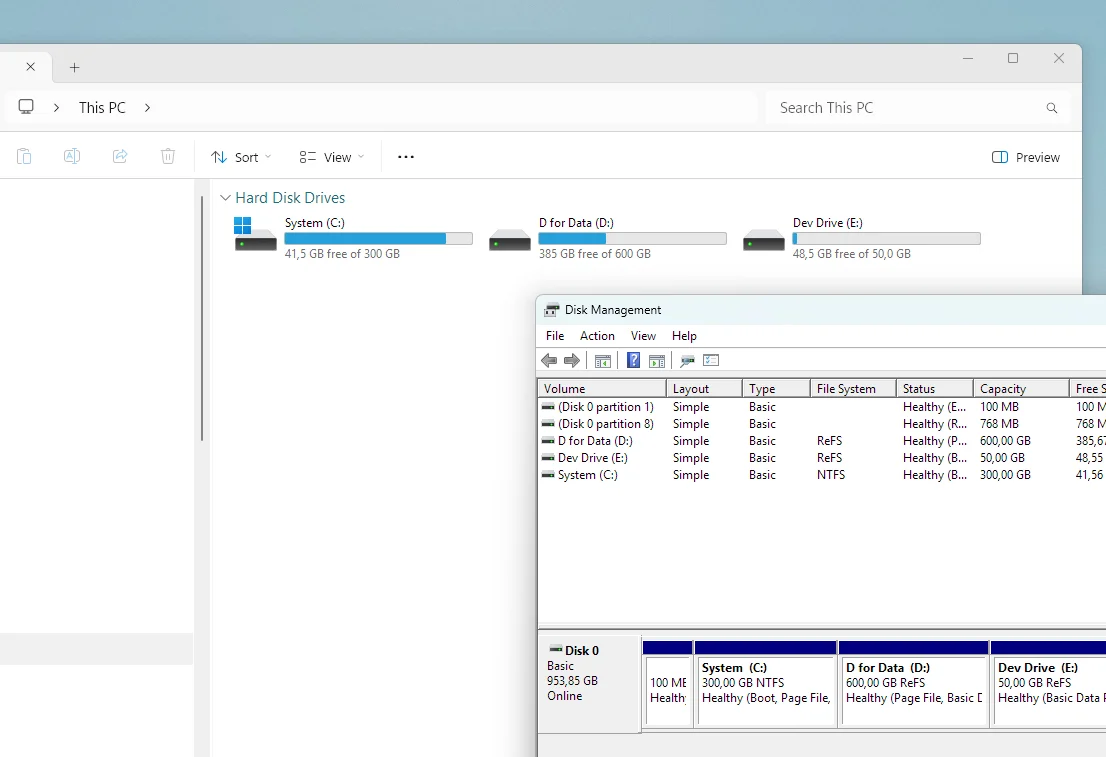
What is a Windows Dev Drive?
A Windows Dev Drive is a specialized storage volume designed to enhance performance for core developer tasks. These tasks include compiling code, running builds, and managing packages. It achieves this by combining two key elements.
The first element is the ReFS file system. It is optimized for handling large numbers of small files and metadata operations common in development. The second is a unique trust and security configuration with Microsoft Defender Antivirus. Dev Drives are designated as “trusted.” This designation enables a performance mode where file scans occur asynchronously. It dramatically reduces the input/output (I/O) delays typically caused by real-time antivirus scanning during intensive file operations.
Microsoft’s own benchmarks show that this combination can lead to substantial performance gains. Some scenarios, like Git operations, see improvements of over 40% compared to a standard NTFS volume with default security settings.
Partition vs. VHD: Flexibility and Performance
A key point of clarity is that a Dev Drive can be created on either a traditional physical disk partition or inside a Virtual Hard Disk (VHD/VHDX) file. The official Microsoft documentation provides guidance on this choice, outlining clear trade-offs.
Creating a Dev Drive on a dedicated partition of your SSD or HDD offers the highest possible performance. It allows the file system to interact directly with the storage hardware without the overhead of a virtual disk layer. The main downside is reduced flexibility. Resizing a partition is more complex, and the storage is tied to the physical disk in that machine.
In contrast, creating a Dev Drive as a VHD file, typically with the .vhdx extension, offers superior portability and manageability. The VHD file can be easily moved to another PC or backed up. It also supports dynamic resizing, growing as you need more space. The minor performance cost due to virtualization is often negligible for many users. Some tests show similar real-world gains between the two methods.
The Core Advantages of the ReFS File System
The performance of a Dev Drive is fundamentally powered by the ReFS file system. Originally developed for Windows Server to handle massive, critical datasets, ReFS brings several key benefits to a developer’s desktop.
1. Enhanced Data Integrity and Resilience
ReFS is designed from the ground up to prevent and handle data corruption. It uses integrity streams. These are checksums for file metadata and, optionally, for the file data itself. This allows the system to detect corruptions accurately. When paired with storage technologies like Storage Spaces, which maintains duplicate copies of data, ReFS can automatically repair detected corruptions using the healthy copy. It does all this while the volume remains online and operational. For a developer, this means an added layer of protection for your source code and project files.
2. Performance Optimizations for Developer Workloads
ReFS incorporates several advanced features that directly accelerate tasks developers perform daily.
One revolutionary feature for copy operations is Block Cloning. Instead of physically duplicating every byte of a file, ReFS can create a new file that points to the existing data blocks. The physical copy only happens later if one of the files is modified. This makes operations like duplicating large project directories, creating VM checkpoints, or applying patches extremely fast. In some tests, it reduces copy times for large files by up to 94%.
Another feature is Sparse VDL, or Valid Data Length. This allows ReFS to initialize large files almost instantly. It is particularly beneficial when working with virtual machines, as it can reduce the time to create a fixed-size virtual hard disk from minutes to seconds.
Finally, ReFS offers efficient metadata handling. Its internal structure, which uses B+ trees, is optimized for speed. Workloads that involve creating, reading, and deleting thousands of small files see significant performance improvements. This is a hallmark of compilation and package management.
3. Massive Scalability
ReFS is built for future-proof scale. It supports volumes and file sizes up to 35 petabytes. This far exceeds NTFS’s 256-terabyte limits. While this may seem excessive for a single desktop, it ensures the file system operates with effortless efficiency. It remains efficient even as project repositories and asset libraries grow enormously over time.
Security and Practical Considerations
The performance gains from Dev Drive’s “trusted” designation with Microsoft Defender come with a responsibility for the user. The asynchronous scanning model means a malicious file could execute before being scanned. Therefore, you should only store trusted development artifacts on the drive.
Microsoft recommends placing the following on your Dev Drive: source code repositories and project files, package caches for tools like NuGet and npm, and build outputs and intermediate files.
It is not recommended to install entire applications, like Visual Studio, or store general downloads and untrusted content on the Dev Drive. The feature is intended to complement your system drive, not replace it.
Real-world developer experiences vary. Some report dramatic improvements. For example, a Git clone operation might complete in 55 seconds on a Dev Drive versus 1 minute 43 seconds on a standard NTFS volume. Others note more modest gains. They emphasize that the benefit is most apparent on systems where storage or antivirus scanning was a primary bottleneck. Performance improvements are generally more noticeable on SATA SSDs or HDDs. The difference on high-end NVMe drives may be less perceptible for some tasks.
Creating and Setting Up Your Dev Drive
Setting up a Dev Drive is straightforward through the modern Windows Settings app. You will need Windows 11 Build 10.0.22621.2338 or later and local administrator permissions.
First, navigate to Settings, then System, then Storage, then Advanced Storage Settings, and finally Disks & volumes.
Click “Create dev drive.”
You will be presented with a key choice: create a new VHD or use unallocated space on a disk to create a physical partition. To use a partition, you may need to first shrink an existing volume to create the necessary unallocated space. The minimum is 50 GB.
Follow the wizard, assigning a drive letter and label. The system will format the space using ReFS and apply the Dev Drive optimizations automatically.
For command-line enthusiasts, you can also format a volume as a Dev Drive using PowerShell with the command: Format-Volume -DriveLetter D -DevDrive.
After creation, consider relocating your developer package caches to the Dev Drive. You can move the NuGet global-packages folder or npm’s cache by setting the appropriate environment variables. This can compound the performance benefits, as these operations become much faster.
A Note on ReFS “Revocation” and Compatibility
You may encounter information stating that ReFS support is being removed from consumer Windows 11 editions. While this is true for general use, Dev Drive is a supported and exceptional pathway to using ReFS on Windows 11 Pro and other SKUs. However, be aware of compatibility nuances. Some third-party tools, disk utilities, or even game anti-cheat software may not function correctly on an ReFS volume. These tools often make deep assumptions about the NTFS file system. Always test your critical workflows after setting up a Dev Drive.
In conclusion, Windows Dev Drive is a potent, underutilized tool. It leverages the enterprise-grade ReFS file system to provide a faster, more resilient environment for development. By understanding its strengths, particularly the ability to harness it on a physical partition, and adhering to its security model, developers can shave valuable time off their build-test cycles. They can create a more robust workspace for their code.