
Relocate Podman WSL Backend to a Secondary Drive
This guide provides a comprehensive and simple tutorial for moving your Podman data from your main hard drive (Drive C:) to a secondary hard drive (Drive D:). We will use a method that is safe, clean, and officially supported by Windows. This process ensures that you keep all your container images, settings, and login keys without breaking your software.
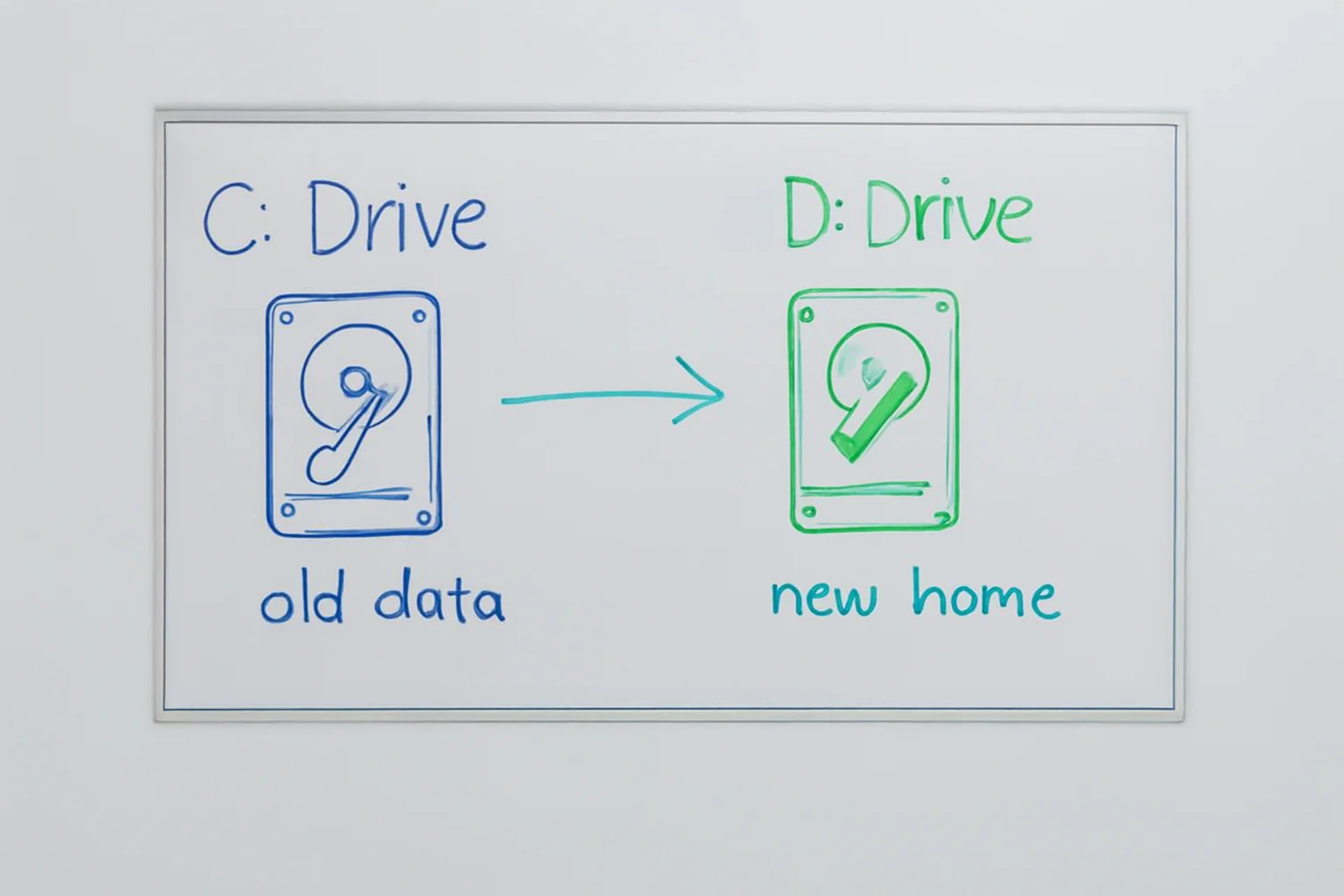
This guide uses plain language to explain every step. It is designed for users who want to understand exactly what commands they are running and why those commands are necessary.
Introduction to the Task
When you install Podman on Windows, it needs a place to store its data. Podman uses a technology called the Windows Subsystem for Linux, or WSL for short. This technology creates a virtual environment that acts like a Linux computer inside your Windows computer.
By default, Windows puts this Linux environment on your C: drive. The files for this environment are stored inside a single, large file called a virtual hard disk. As you use Podman more, you will download more images and create more containers. This causes the virtual hard disk file to grow larger and larger. Eventually, it can take up too much space on your main drive.
The goal of this tutorial is to move that large file to your D: drive. However, you cannot simply copy and paste the file like a Word document. The file is locked by the system, and Windows needs to know exactly where it is to run it. If you just move it, Podman will stop working.
To move it correctly, we use a three-step process:
- Export: We pack the entire system into a portable backup file.
- Unregister: We delete the old version from the C: drive to free up space.
- Import: We unpack the backup file onto the D: drive and tell Windows where it is.
This method is the most reliable way to move a WSL distribution. It preserves your exact setup.
Step 1: Stop All Services
Before we can move any files, we must make sure nothing is using them. If a program is trying to read or write to the disk while we move it, the data could become corrupted. We need to stop both the Podman program and the underlying Linux system.
First, we stop the Podman machine. Open your PowerShell application and type the following command:
PowerShell
podman machine stop
This command tells the Podman application to shut down its containers. However, the background Linux system might still be running in the background. Windows keeps it ready in case you want to use it again quickly. We need to turn this off completely to release the lock on the files.
Type this command to shut down the subsystem entirely:
PowerShell
wsl --shutdown
This command forces all Linux distributions on your computer to stop running. This ensures that the file on your hard drive is completely closed and safe to touch.
Step 2: Export the System to a Backup File
Now that the system is stopped, we will create a complete copy of your Podman environment. We call this “exporting.” When we export the system, Windows reads all the files inside your Linux environment and packs them into a single archive file. This file ends with .tar.
Think of this like packing up your house into a moving truck. The .tar file is the truck that holds all your furniture and boxes.
We will save this backup file directly to your D: drive. Ensure you have enough free space on your D: drive before you run this.
Run this command in PowerShell:
PowerShell
wsl --export podman-machine-default D:\WSL\podman-machine-default.tar
Let us explain what this command does:
wsl --export: This tells Windows we want to create a backup.podman-machine-default: This is the name of the system we are backing up. This is the standard name Podman uses.D:\WSL\podman-machine-default.tar: This is where we want to save the file.
This process might take a few minutes. It depends on how much data you have in your containers. When it is finished, you will have a single large file on your D: drive that contains everything from your old setup.
Step 3: Remove the Old System from Drive C
This step is very important. We need to remove the old installation from the C: drive. We call this “unregistering.”
When you unregister a distribution, two things happen. First, Windows removes the entry from its internal registry database. It “forgets” that the system exists on the C: drive. Second, it deletes the virtual hard disk file to free up your storage space.
Warning: This deletes the data on the C: drive. Make sure your export command in Step 2 finished successfully before you do this. You should check your D: drive to confirm the .tar file is there.
If the backup file exists, run this command:
PowerShell
wsl --unregister podman-machine-default
Once this command completes, the space on your C: drive is reclaimed. The Podman system is now gone from your computer temporarily. It exists only inside the backup file on your D: drive.
Step 4: Import the System to Drive D
Now we will restore your system to its new home. We call this “importing.”
When we import the file, Windows will do two things. First, it will take the .tar backup file and expand it back into a working virtual hard disk. Second, it will register the new location in its database.
We must use the exact same name as before: podman-machine-default. Podman looks for this specific name. If we change the name, Podman will not be able to find it, and it will think you have no machine installed.
Run this command to import the system:
PowerShell
wsl --import podman-machine-default D:\WSL\podman-machine-default D:\WSL\podman-machine-default.tar
Here is a breakdown of the parts of this command:
wsl --import: This tells Windows we want to install a new distribution from a file.podman-machine-default: This is the name we are giving to the new installation. It matches the old name.D:\WSL\podman-machine-default: This is the folder where Windows will create the new hard disk file.D:\WSL\podman-machine-default.tar: This is the source backup file we created in Step 2.
After this command finishes, you will have a new working system on the D: drive. Windows now knows that podman-machine-default lives on Drive D instead of Drive C.
Step 5: Restart Podman
The move is complete. Now we need to verify that everything works. We do this by simply starting Podman as we normally would.
Because we reused the correct name, Podman will not know that anything changed. It will ask Windows for the system named podman-machine-default, and Windows will point it to the new location on the D: drive.
Run this command to start the machine:
PowerShell
podman machine start
If the machine starts up without any red error messages, you have succeeded. Your containers and images are now available just as they were before.
Verification and Safety Checks
It is good practice to double-check your work. We will run a few simple checks to prove that the files are in the right place and the old files are gone.
Check 1: Confirm the Location
We want to verify where Windows thinks the system is installed. We can ask WSL to list all installed systems and show us the details.
Run this command:
PowerShell
wsl --list --verbose
Look for the line that says podman-machine-default. It should say “Stopped” or “Running.” This confirms that Windows recognizes the import.
Check 2: Confirm the File Exists
Open your File Explorer and go to the D: drive. Navigate to the folder D:\WSL\podman-machine-default. You should see a file named ext4.vhdx. This is your new virtual hard disk. If this file is there, the import worked correctly.
Check 3: Confirm Podman works
We want to ask Podman to list the status of its machine.
Run this command:
PowerShell
podman machine list
You should see your machine listed. The status column should show that it is active. The date created might look old because it preserved the original date of your setup. This is a good sign.
Check 4: Confirm the C: Drive is Clean
We want to make sure the old files are truly gone so you have your free space back. Navigate to your user folder on the C: drive.
Look for this path:
C:\Users\YOUR_NAME\.local\share\containers\podman\machine\wsl\wsldist\
Check inside that folder. You should not see a folder named podman-machine-default. Or, if the folder is there, it should be empty. If it is empty, you can safely delete the empty folder icon. This confirms that you are no longer using space on your main drive.
Why is this the correct method?
You might wonder why we have to go through the process of exporting and importing. Why can we not just drag and drop the folder?
The reason lies in how the Windows Subsystem for Linux works. It is not just a folder of files. It is a complex filesystem that supports Linux permissions, ownership, and special file types that Windows does not understand natively.
1. Preserving Permissions
Linux relies heavily on file permissions. It needs to know which user owns a file and who is allowed to read it. If you copy these files using Windows Explorer, those permissions can get lost or translated incorrectly. When that happens, your containers will fail to start because they do not have permission to read their own data. The export method wraps everything in a “tarball” archive, which keeps these permissions perfect.
2. Registry Links
Windows keeps a database that maps the name of a distribution to a specific hard drive ID. If you move the file manually, the database still points to the old location. When you try to start it, Windows looks at the old location, finds nothing, and crashes. The wsl –import command updates this database automatically.
3. SSH Keys and Identity
Podman communicates with the Linux backend using secure keys (SSH keys). These are like digital ID cards. If you were to create a brand new machine on the D: drive instead of moving the old one, new keys would be generated. Your Podman client on Windows would not recognize the new keys, and you would have to reconfigure your connections. By moving the existing setup, the keys remain the same, and the connection works instantly.
4. Audit Safety
This method is “deterministic.” This means if you follow the steps, you get the same result every time. It uses standard tools that come with Windows. You do not need to download sketchy third-party software or modify hidden system settings. This makes it safe for work computers and environments where security is strict.
Final Cleanup
After you have confirmed that everything works perfectly for a few days, you will still have the backup file on your D: drive. This is the file named podman-machine-default.tar.
This file takes up space. Since your system is now running from the new ext4.vhdx file, you do not strictly need the .tar file anymore.
However, it is a good idea to keep it for a week or so. Think of it as a snapshot of your system. If something goes wrong with your new drive, you can always import this file again to restore your data. Once you are confident that your new setup is stable, you can delete the .tar file to free up more space on your D: drive.
By following this guide, you have successfully managed your storage and kept your development environment clean and organized.